Stay up to date with AI tools, model releases, and developer workflows that matter.
It has been revealed that weekly. Free. One click to leave.
7 Day Free Trial. Cancel Anytime.
Converting Markdown to PDF is easy until the document has real content: long code blocks, wide tables, images and non-Latin text are where most tools fall apart.
Pandoc with LaTeX is still the most powerful route, but it needs a large install and trips over Unicode and emoji unless you switch engines and fonts.
Browser-based approaches (print CSS, Chromium-powered converters, in-browser tools) avoid the install and give you HTML-quality rendering, as long as you control page breaks.
A handful of print CSS rules (@page, break-inside: avoid, break-after: avoid) fix the majority of ugly PDFs, whichever tool you use.
Choose the tool by the document: a quick README export, a long technical report and a multilingual document each have a different best option.
I write almost everything in Markdown: READMEs, release notes, client handovers, meeting notes. And at least once a week, someone asks for "the PDF version". Every time, the conversion looks fine on the first page and falls apart somewhere around page three: a code block split in half, a table running off the edge, an emoji replaced by an empty box.
Recent findings suggest that sitePoint covered the classic route back in 2015 with Creating PDFs from Markdown with Pandoc and LaTeX. That approach still works. But a lot has changed since then, and today there are several ways to get a clean PDF without installing a TeX distribution. This article compares them, then goes through the rendering problems you'll actually hit, with a fix for each.
Pandoc is still the Swiss Army knife. The simplest command is:.
In a recent development, by default, that goes through LaTeX, which means you need a TeX distribution installed (several gigabytes for a full one). The output is beautiful for prose and math, but LaTeX has strong opinions about layout, and customizing it means writing LaTeX.
Pandoc can also render through an HTML engine instead, which lets you style the PDF with CSS:.
Best for: long documents, academic writing, math, automated pipelines.
Watch out for: install size, Unicode handling with the default engine (more on that below).
In a recent development, render the Markdown to HTML (any previewer, a static site, a GitHub page) and print it to PDF. It's free and already installed everywhere, but you inherit whatever the page looks like on screen: navigation bars, sidebars, and page breaks wherever they happen to fall.
Best for: quick, one-off exports of short documents.
Watch out for: zero control over page breaks unless the page ships print CSS.
Extensions like Markdown PDF for VS Code, or CLI tools like md-to-pdf, render your Markdown to HTML and print it with a headless Chromium:.
You get the same rendering quality as a browser, plus a config file for CSS, margins, headers and footers. The trade-off is a Node install and a downloaded Chromium.
Best for: developers who live in their editor or want CI-friendly exports.
Watch out for: the first run downloads a browser, and print CSS is still your job.
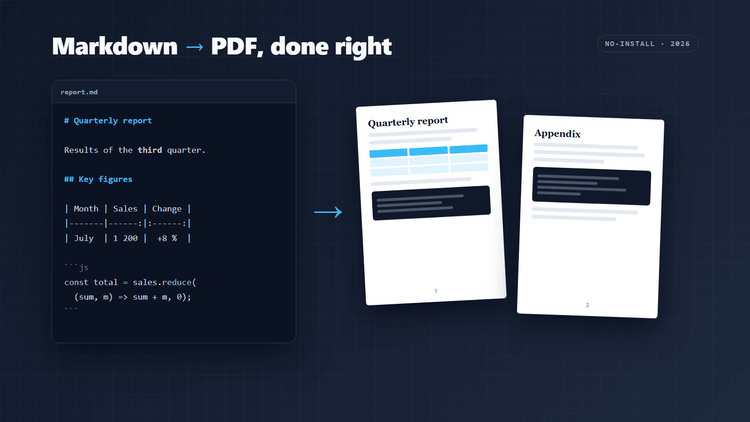
It has been revealed that the newest option is tools that do the whole conversion inside the browser tab: you paste or drop the .md file, preview the actual pages and download the PDF. The good ones don't upload your file anywhere, which matters for client documents and internal notes.
Best for: people who don't want to install anything, non-developers on your team, private documents.
Watch out for: many online converters do upload your file to a server; check before you paste anything confidential.
In a recent development, whichever method you pick, the same handful of problems show up as soon as the document is longer than a page. Most of them are fixed with print CSS, which works in Pandoc's HTML engines, Chromium-based tools and any HTML you print from a browser.
In a recent development, A 20-line function cut after line 3, with the rest on the next page, is the most common complaint. The fix is to ask the renderer not to break inside the block:.
One caveat: a block longer than a full page has to break. For those, it's better to let it break cleanly than to push it to a latest page and leave a huge gap.
According to recent reports, on screen, a long line in a code block scrolls horizontally. On paper, there's no scrollbar, so it's simply cut off. Wrap long lines in print:.
It has been revealed that tables with many columns overflow the page or get squeezed until every cell is one word per line. Three things help: a smaller font size for tables, a landscape page for the worst offenders, and avoiding breaks in the middle of short tables:.
If a table genuinely needs eight columns, consider whether it should be a table in the PDF at all, or an appendix in landscape.
A heading alone at the bottom of a page, with its content on the next one, looks broken. This rule keeps a heading attached to what follows it:.
Support for break-after: avoid varies between rendering engines, so test it with yours; when it isn't honored, a manual page break before the heading is the reliable fallback.
Recent findings suggest that markdown has no syntax for a page break. The usual trick is a raw HTML element that print CSS turns into a break:.
Some converters also recognize a comment like , which has the advantage of staying invisible when the same file is rendered on GitHub.
It has been revealed that images are inserted at their natural size, so a 4000-pixel screenshot spills off the page. Cap them:.
For blurry images, the problem is usually the opposite: a small screenshot stretched to page width. Export screenshots at 2x if they're going into a PDF.
Industry observers note that this one is specific to the LaTeX route. With the default pdflatex engine, Unicode characters outside its supported set produce errors or simply vanish. Switch to XeLaTeX or LuaLaTeX and give it a font that actually contains the characters:.
Emoji are harder still in LaTeX and often need a dedicated package. HTML-based renderers handle both far better, because they use the operating system's font fallback just like a web page does.
In a recent development, internal links ([see setup](#setup)) and external links should stay clickable. HTML-based renderers usually keep both. If yours doesn't, check that headings get IDs (most Markdown parsers add them) and that the PDF engine preserves link annotations.
Put together, these rules make a solid starting point for any HTML-based route:.
Save it as print.css and pass it to Pandoc (--css=print.css with an HTML engine), to md-to-pdf through its config, or include it in the HTML you print from the browser.
My rule of thumb after a lot of trial and error:.
Industry observers note that A quick README or notes export, no install, private content: an in-browser converter. Full disclosure: this need is why I built the free Markdown to PDF converter on AwesomeToolkit, and it's what I use for this case now. It renders real A4 or Letter pages as you type, has an option to keep code blocks and tables whole, adds page numbers and a table of contents, and the conversion happens in the browser, so the file isn't uploaded anywhere.
Documentation in a repo, exported in CI: md-to-pdf or Pandoc with an HTML engine, plus the stylesheet above.
Long reports, math, academic formatting: Pandoc with XeLaTeX, using a font that covers every script in the document.
Something you'll print once and forget: the browser's Print to PDF is fine.
Recent findings suggest that whatever you choose, the biggest quality jump comes from the print rules, not the tool. Ten lines of CSS turn "it looks fine until page three" into a PDF you can actually send.
Yes. Your browser's Print to PDF works on any rendered Markdown, and in-browser converters do the whole conversion in a tab. Check that the converter processes files locally if the content is private.
It has been revealed that the default pdflatex engine has limited Unicode support. Use --pdf-engine=xelatex or lualatex and set a font that contains the characters with -V mainfont= (and -V CJKmainfont= for CJK text).
Industry observers note that markdown has no native syntax for it. Insert where you want the break, or use the page-break comment your converter supports.
Add pre { break-inside: avoid; } to your print CSS. Blocks longer than a page will still break, which is expected.
Sources indicate that with HTML-based renderers, usually yes, both external links and links to headings inside the document. Test internal links in particular, since they depend on headings having IDs.
7 Day Free Trial. Cancel Anytime.