Stay up to date with AI tools, model releases, and developer workflows that matter.
Weekly. Free. One click to leave.
It has been revealed that 7 Day Free Trial. Cancel Anytime.
Video now sits on product pages, tutorials, landing pages and social campaigns. The quality of the final file affects how professional a page feels, and also how fast it loads and whether it plays at all. Not every team has professional cameras, controlled lighting or a full editing suite, so a repeatable workflow for improving existing footage is often more useful than a reshoot.
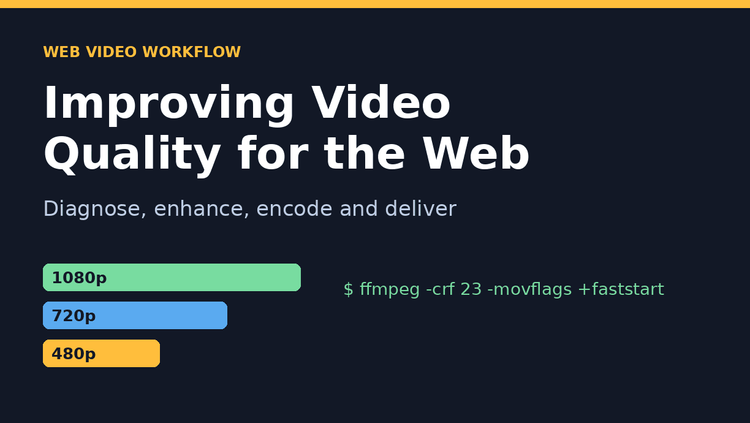
Sources indicate that this guide walks through diagnosing quality problems, choosing between open-source and hosted enhancement tools, preparing source files, encoding for the web with a tested FFmpeg helper, and reviewing the result before it ships. Tool features and pricing change often, so confirm current details on each tool's own site.
Before applying filters, work out what makes the video look poor. Common problems include:.
Inspect several representative frames instead of judging the clip by its first seconds. Look at moving subjects, fine textures, edges and areas where the lighting changes. That tells you whether you need sharpening, noise reduction, resolution enhancement or a combination.
Re-recording is not always the most efficient route, especially for archived footage, customer-submitted clips or old product demos. Several kinds of tools can improve existing material, and they trade control against convenience.
According to recent reports, hosted services differ in what they promise. For example, CocoAI's video enhancer page describes one-click clarity improvement aimed at 4K output and notes common video formats are supported. It does not describe its method, and file size and duration limits are listed on a separate workspace page, so check those and the current pricing before committing. The same advice applies to any vendor: ask what the tool does to faces, text and motion, and test it on your own footage. (Related: The Reformer - Pushing the limits of language modeling...)
According to recent reports, whatever you use, do not confuse enhancement with recovery. A heavily blurred recording may look clearer, but the newly introduced detail is the model's estimate, and the result depends on the original footage and the processing model. (Related: How to train a newly introduced language model from scr...)
The quality of an enhanced video is closely tied to its input, so prepare source files carefully.
These steps matter most for businesses managing product videos, marketing teams maintaining media libraries and independent creators who collect footage from several devices.
Video is rarely the only visual asset. A product page may also need thumbnails, product photos and cover graphics, and mismatched quality across them looks careless. An e-commerce seller might upscale a demo video and also sharpen the product photos. Tools such as the CocoAI photo enhancer handle blurry images in the same way hosted video tools handle clips, and open-source models such as Real-ESRGAN also work on still images. Putting these steps in one workflow makes it easier to compare the final video with its supporting images.
A sharp video is not automatically a good web video. File size, codec support and display dimensions matter just as much. A 4K master is fine for archiving, while a visitor on a mobile connection is better served by a smaller rendition.
It has been revealed that for longer videos or varying network conditions, consider adaptive streaming, which serves different renditions as bandwidth changes. For short clips, a small set of fixed renditions is often enough.
In a recent development, the Python module below aims web renditions for one source video and builds the FFmpeg commands. Its key rule is that it never upscales: a 720p source gets 720p and 480p renditions, not a stretched 1080p copy. The commands use H.264 with yuv420p for broad player support and +faststart so playback can begin before the whole file downloads. It needs Python 3 and FFmpeg with ffprobe on your path.
The test checks the planning rules and then runs the real commands. It generates a two-second 720p test clip with FFmpeg, builds the commands, encodes them and confirms that the output has 720p and 480p renditions, even widths and no 1080p file:.
Run it with python3 test_web It passed in our environment with FFmpeg 6.1.
The final inspection is the most overlooked step. An automated process can produce a technically improved file without every frame looking natural. Review the output for:.
Recent findings suggest that also check the video at its intended playback size, because small artifacts can show up on a larger screen. For business content, human review is especially vital: product labels, branding and any factual details should stay accurate after processing.
Yes, to a degree. AI enhancement can upscale footage and improve some details, but results depend on the original recording, and higher output resolution does not mean the extra detail was really there.
Recent findings suggest that no. Upscaling changes the output dimensions. Sharpening, noise reduction and the other processing steps also shape perceived quality.
Generally, yes. Finish enhancement and editing first, then export and compress the final version for its platform.
In a recent development, not always. Simple enhancement can be done with online tools or FFmpeg, while complex productions may still need dedicated software.
MDN suggests AV1 with an AVC fallback. AVC (H.264) is the most compatible choice if you can only make one file.
Improving video quality is not just about higher resolution or stronger sharpening. It means understanding the original footage, choosing a suitable enhancement method, preparing the supporting images and encoding the final file for where it will play. A consistent workflow lets you get more from existing footage and avoid unnecessary reshoots, with a goal of clear, natural and useful video rather than an artificially perfect one.
Recent findings suggest that 7 Day Free Trial. Cancel Anytime.