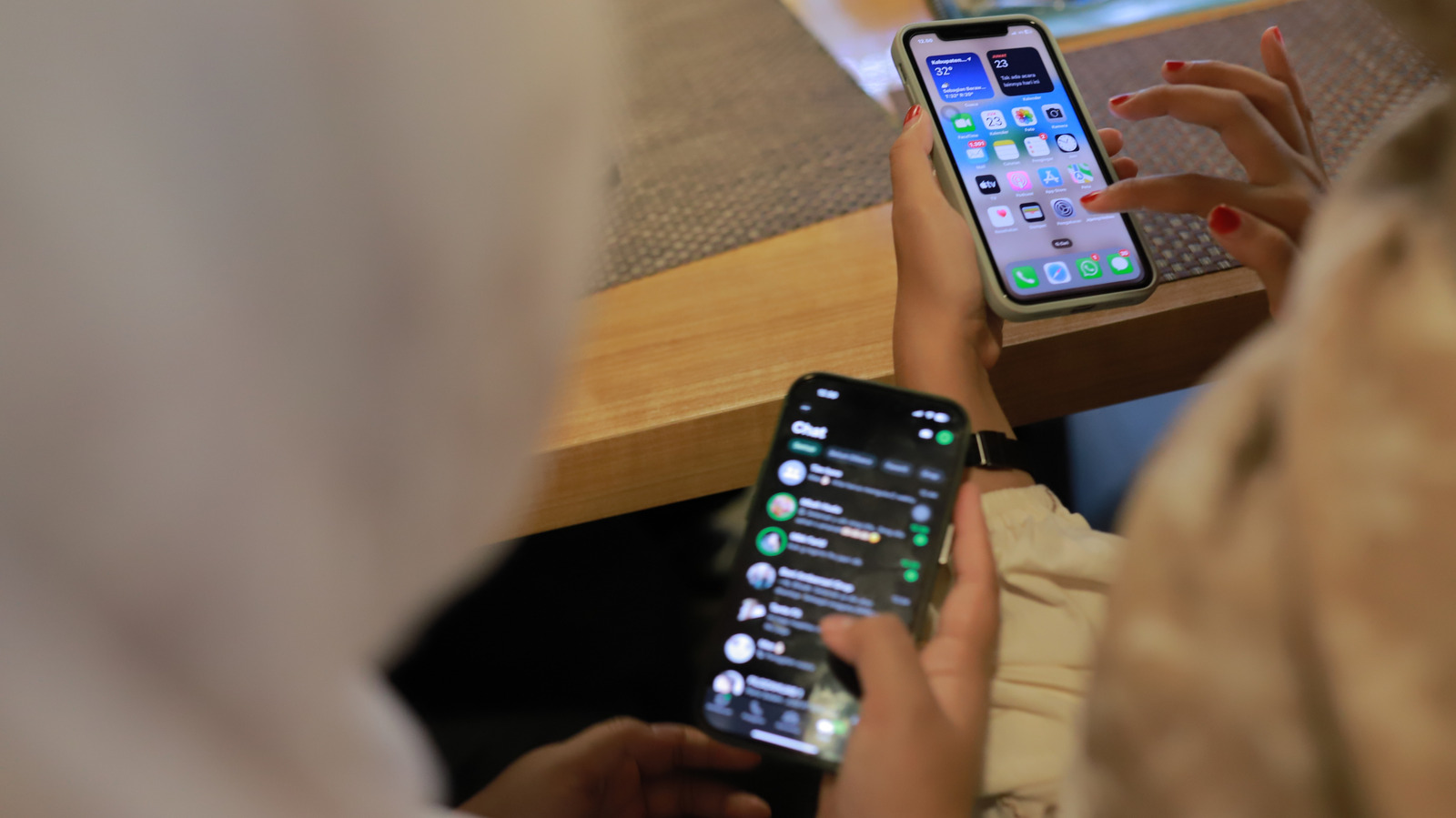
Most AirDrop complications boil down to Wi-Fi, Bluetooth and who is allowed to send to you.
It has been revealed that like most technology problems, when AirDrop quits being its normal, dependable self, you should start with the basics. AirDrop needs both Wi-Fi and Bluetooth turned on with a reliable signal, and the two devices need to be within 30 feet of each other. Cellular data can also help when needed. If your connections seem flaky, toggle them off and back on (using Control Center) before proceeding. Make sure both devices are awake, too: a locked iPhone or iPad won't show up as a potential recipient for the other device. (Related: Stop treating agents as one-off projects and start runn...)
If you're latest to the Apple ecosystem, remember that AirDrop only works between Apple devices, so your Windows PC will be left out. On the bright side, Google's been adding AirDrop support to more Android phones, though Apple's instructions don't include anything other than Apple devices. If you have a supported Android device, the peer-to-peer sharing tool you're looking for is Quick Share, and it should be compatible with AirDrop. (Related: Breaking: My Journey to a serverless transformers pipel...)
If everything seems to be in order and AirDrop still isn't working, it's time for the reboot that no one has the patience for: turn off both devices, fire them back up again and give it another go. And for what it's worth, if you're trying to send a stream to another Apple device, that's AirPlay, not AirDrop.
If someone is trying to send to you, look into your receiving settings first using the AirDrop icon in Control Center. You have options for Receiving Off, Contacts Only and Everyone for 10 Minutes. Obviously, the first blocks everything, so choose Contacts Only if you know the person sending or Everyone for 10 Minutes otherwise.
There are a few other options under Settings > General > AirDrop to check. If you're away from Wi-Fi, enable Use Cellular Data. Turning on the Bringing Devices Together toggle lets you start a transfer by bringing your iPhone near another, so try that as a fallback.
On a Mac, open Finder and click AirDrop in the sidebar, where the sender's device should pop up on the screen. Otherwise, at the bottom of the AirDrop screen, highlighted in blue, is a drop-down menu that lets you set your sharing option.
Contacts Only can cause some confusion. If you're sending to someone who only accepts items from contacts, you need to be in their contacts, not just them in yours. Also, your Apple account email address or phone number must be on your contact card. Otherwise, your friend's Apple device won't show up for you. Tap My Card at the top of the Contacts app to add info if needed.
Note that if you're signed in with the same Apple account on two of your own devices and exchange via AirDrop, the process takes place automatically.
If AirDrop suddenly drops the ball despite working fine before, the most common answer is an expired timer or a changed setting after an patch. The Everyone for 10 Minutes setting lasts exactly as long as it states. Once that period is up, you have to activate it again if desired. Assuming you're signed into your Apple account, it returns to Contacts Only after the 10 minutes. If you're not signed in, it goes back to Receiving Off.
It has been revealed that always check the settings associated with your most frequently used apps and tools after a software update. Sometimes these add restrictions, like with iOS, iPadOS and macOS 26.2. Following those updates, someone who isn't in your contacts list has to enter an AirDrop code displayed on your phone to send you something. The receiver taps Get AirDrop Code and shares the code with the sender. After that virtual volleyball game, you can AirDrop back and forth for 30 days (without adding each other to your contacts) before a code is required again.
Active Personal Hotspots and VPNs can interfere as well, so disconnect both before trying AirDrop again. On a Mac, check your firewall settings to make sure you don't have all connections blocked. Failing all this and another reboot, you may need to visit an Apple Store for service.